Build a Sovereign Coding Agent with Goose and Exoscale Dedicated Inference
 Luc Juggery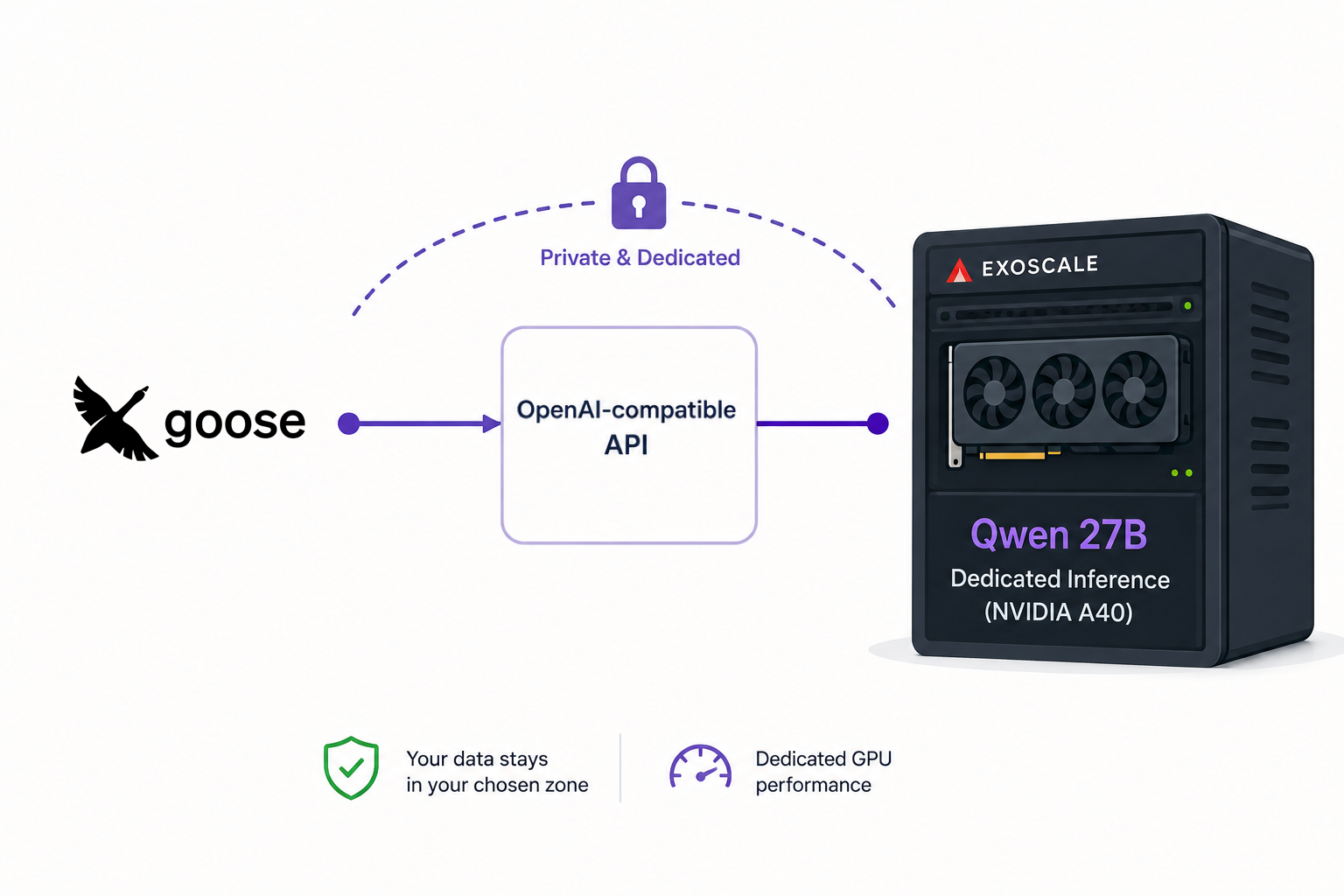
Using Claude Code, Codex, or any other coding agent from the big AI companies is straightforward yet very powerful. But what does it require to run our own coding agent? Which model to use? What are the components involved?
In this short post, we’ll explore how to get our own coding agent using Exoscale dedicated inference and Goose, one of the first projects of the Agentic AI Foundation.
About Exoscale Dedicated Inference
Exoscale Dedicated Inference allows you to deploy the HuggingFace model of your choice on a dedicated GPU from Exoscale’s offering.
You provide the model’s name, and Exoscale deploys all the components, including:
- VM instance with GPU(s)
- Storage
- CUDA drivers
- vLLM inference engine
- Authentication
- Monitoring
As a result, you get an OpenAI-compatible endpoint that you can use in many AI applications.
With Exoscale Dedicated Inference, you select the zone you want among Exoscale’s European Datacenters, and you can be sure that no traffic, nor data will ever leave this zone.
About Goose
Goose is a general-purpose open-source AI agent. It is available as a Desktop app or as a CLI. Goose is one of the first projects of the Agentic AI Foundation, alongside Model Context Protocol, AGENTS.md, and Agent Gateway.
Among Goose’s characteristics and features:
- open-source
- vendor-neutral
- model-agnostic
- first-class MCP support
- supports Skills as defined in Agent Skills open-standard
- supports AGENTS.md
Goose is very extensible: through MCP, we can expand its capabilities using additional Tools, Resources, and Prompts.
Deploy a Qwen model on Exoscale Dedicated Inference
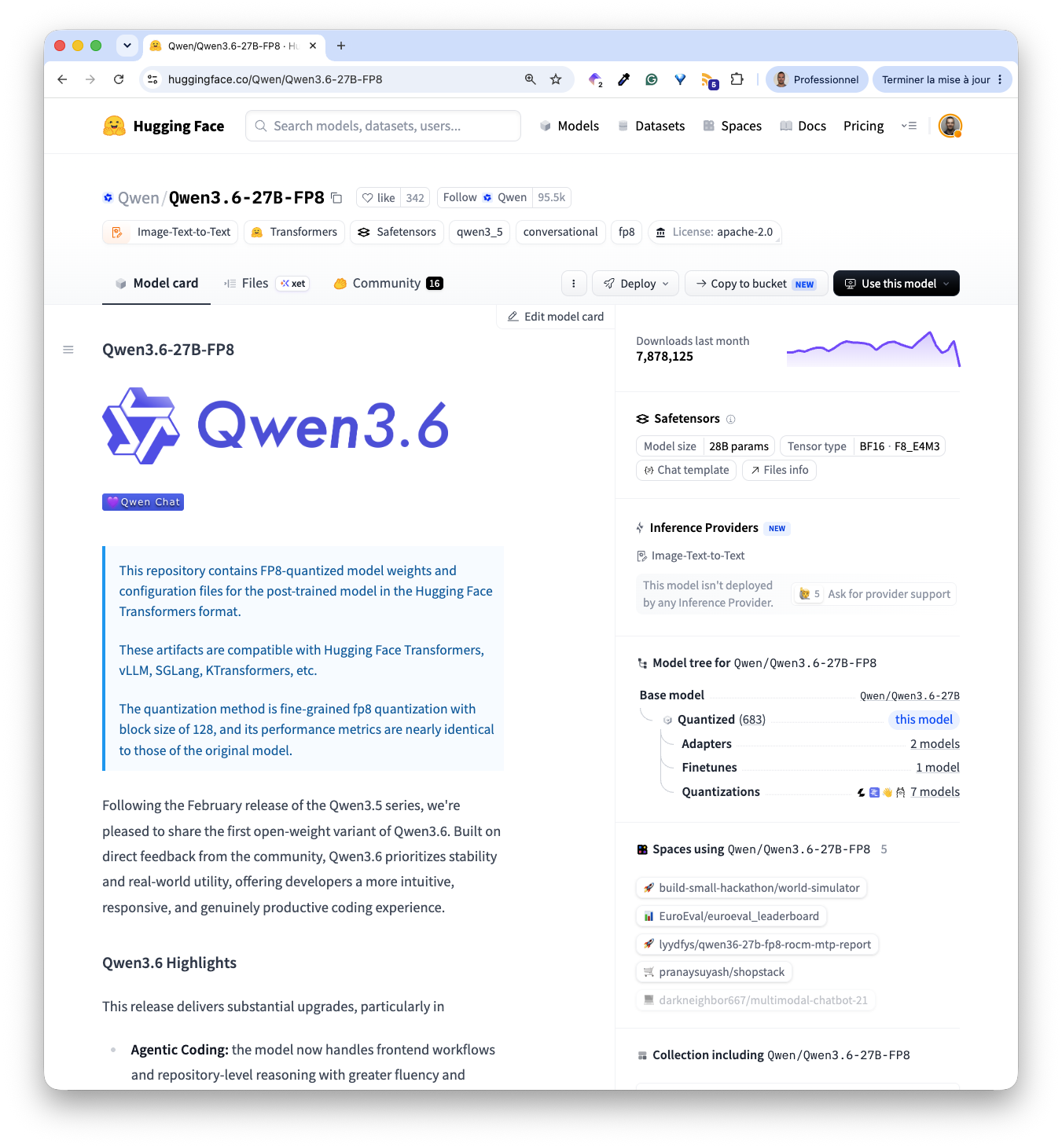
First, we retrieve the model from HuggingFace.
exo ai model create Qwen/Qwen3.6-27B-FP8 -z de-fra-1Then, we create a dedicated inference endpoint on an NVIDIA A40 GPU.
exo ai deployment create qwen \
  --model-name Qwen/Qwen3.6-27B-FP8 \
  --gpu-type gpu3 \
  --gpu-count 1 \
  --replicas 1 \
  -z de-fra-1 \
  --inference-engine-params '--max-model-len=65536 --kv-cache-dtype=fp8 --max-num-seqs=10 --enable-auto-tool-choice --tool-call-parser=qwen3_coder --speculative-config={"method":"mtp","num_speculative_tokens":3}'
To save some VRAM, we used a couple of optimizations while configuring the internal vLLM inference engine:
- –max-model-len=65536 limits the context size
- –kv-cache-dtype=fp8 saves KV Cache tensors in lower precision
- –max-num-seqs=10 limits the number of concurrent requests to 10
We also used this parameter to optimize latency:
- –speculative-config={“method”:“mtp”,“num_speculative_tokens”:3}
As well as parameters to specify the way tools are chosen and parsed
- –enable-auto-tool-choice leaves the model to select the tools to use
- –tool-call-parser=qwen3_coder specifies the parser to use when the model replies with a tool call instruction
Next, we retrieve the deployment’s URL and KEY.
DEPLOYMENT_URL=$(exo ai deployment show qwen -z de-fra-1 -O json | jq -r .deployment_url)
DEPLOYMENT_KEY=$(exo ai deployment reveal-api-key qwen -z de-fra-1 -O json | jq -r .api_key)
Then, we test the endpoint by sending a sample request.
curl $DEPLOYMENT_URL/chat/completions \
  -H "Authorization: Bearer $DEPLOYMENT_KEY" \
  -H "Content-Type: application/json" \
  -d '{
    "model": "Qwen/Qwen3.6-27B-FP8",
    "messages": [
      {
        "role": "user",
        "content": "Is the Qwen family model a good pick for coding"
      }
    ]
  }' | jq -r '.choices[0].message.content'
We get an answer similar to the following one:
Yes, the **Qwen family** is widely regarded as a strong pick for coding tasks. Here’s a breakdown of why it stands out and how to choose the right variant for your workflow:
...Installing & configuring Goose
Goose is a general-purpose open-source AI agent; in this section we’ll use it as a coding agent.
Goose can be installed as a Desktop or CLI application. Check the Goose documentation if you want to install Goose in your environment. In this post, we use Goose Desktop.
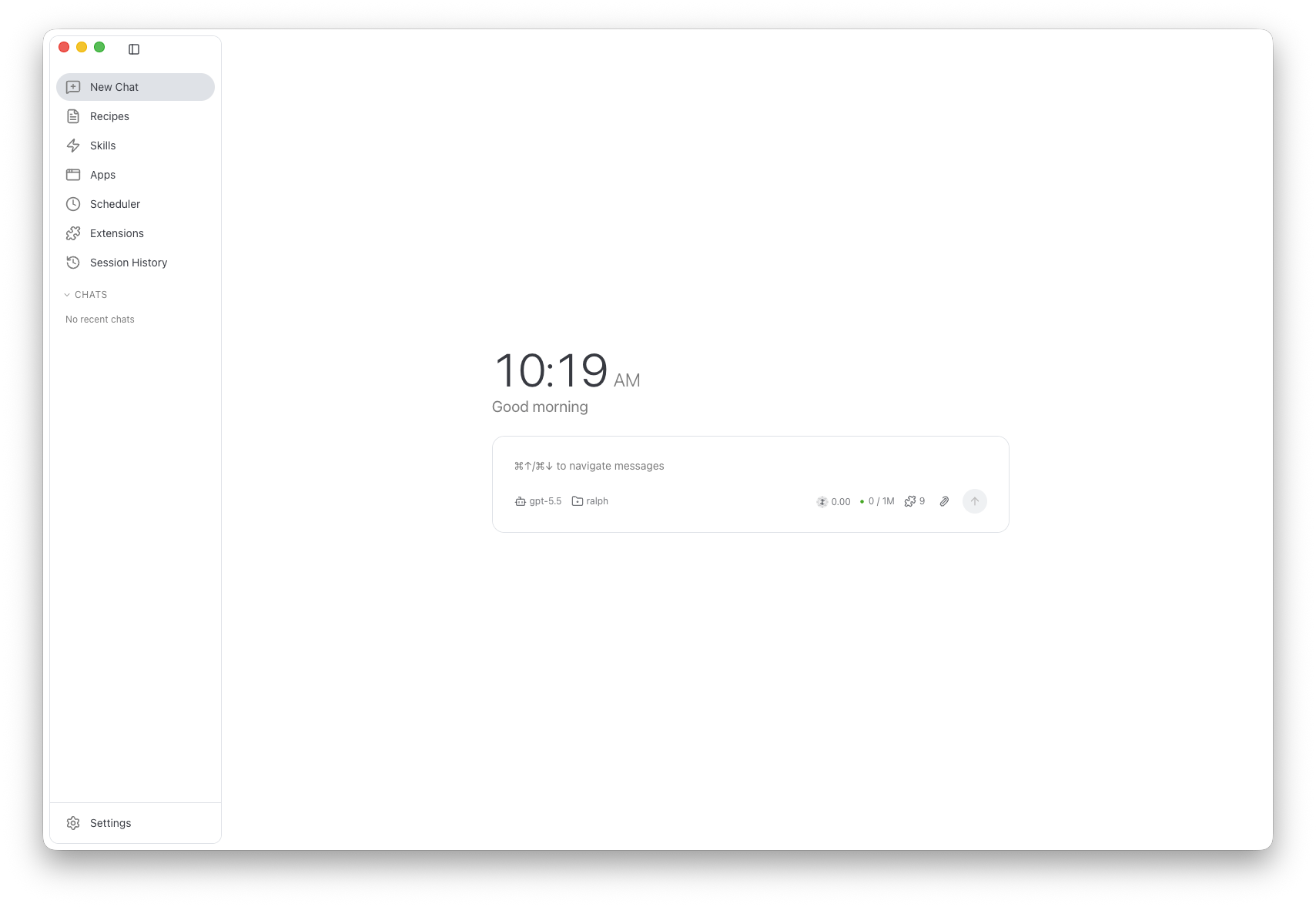
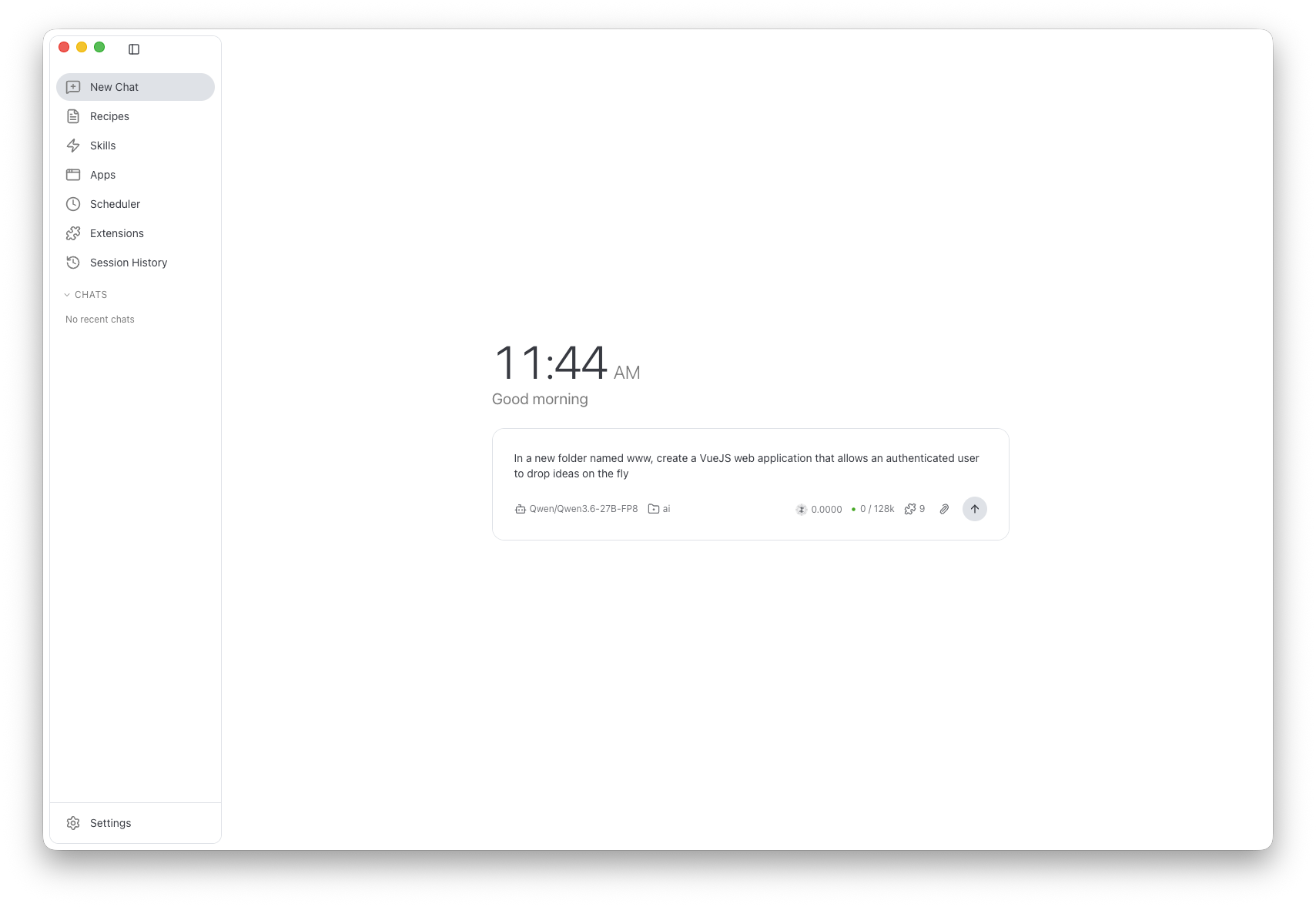
Once we launch it, we get this nice and sober UI.
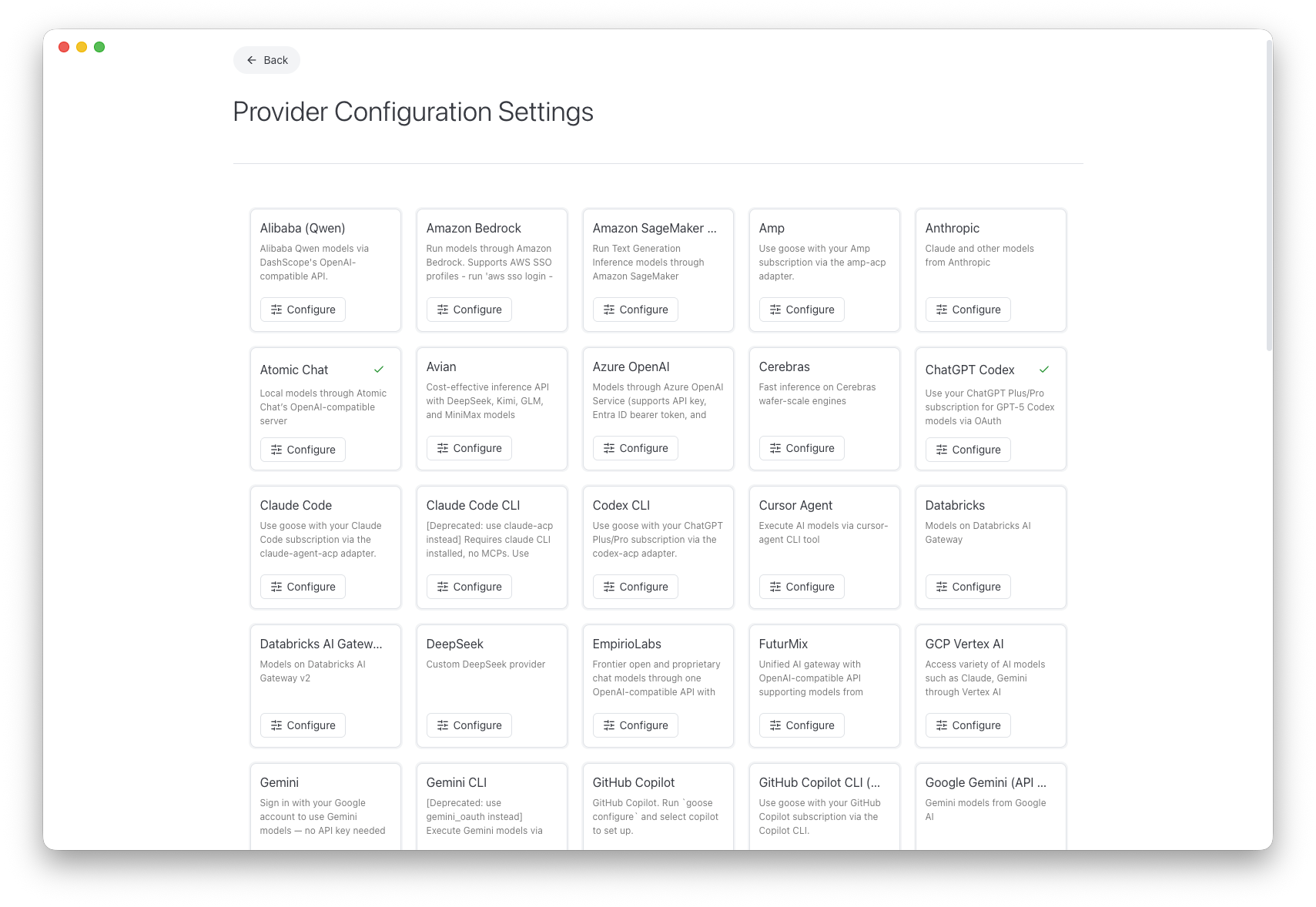
We can connect Goose to various LLM providers. The full list is available from Settings > Models > Configure providers menu.
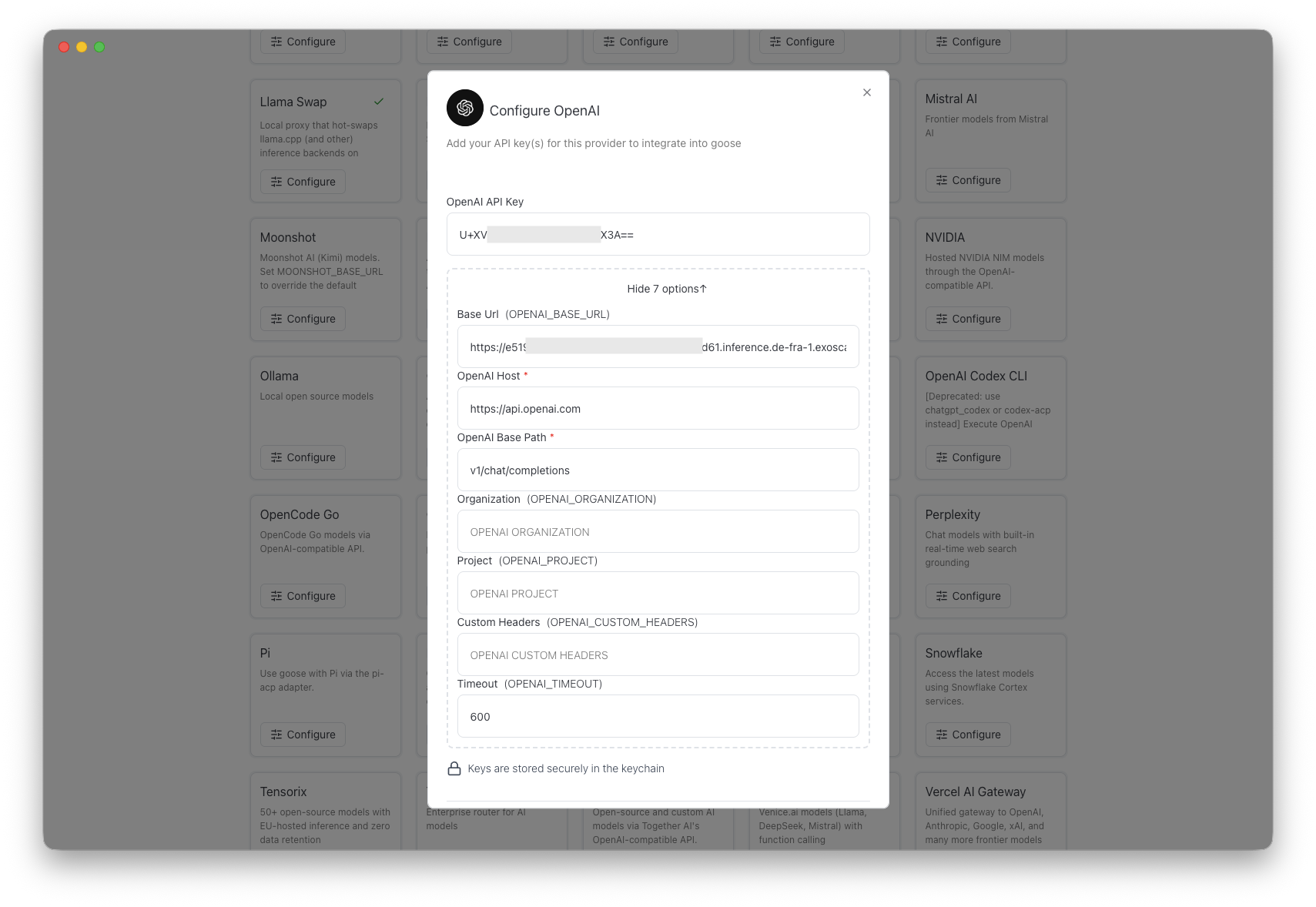
To connect Goose to the Dedicated Inference endpoint we created above, we select the OpenAI provider and enter the values we saved in the DEPLOYMENT_URL and DEPLOYMENT_KEY environment variables.
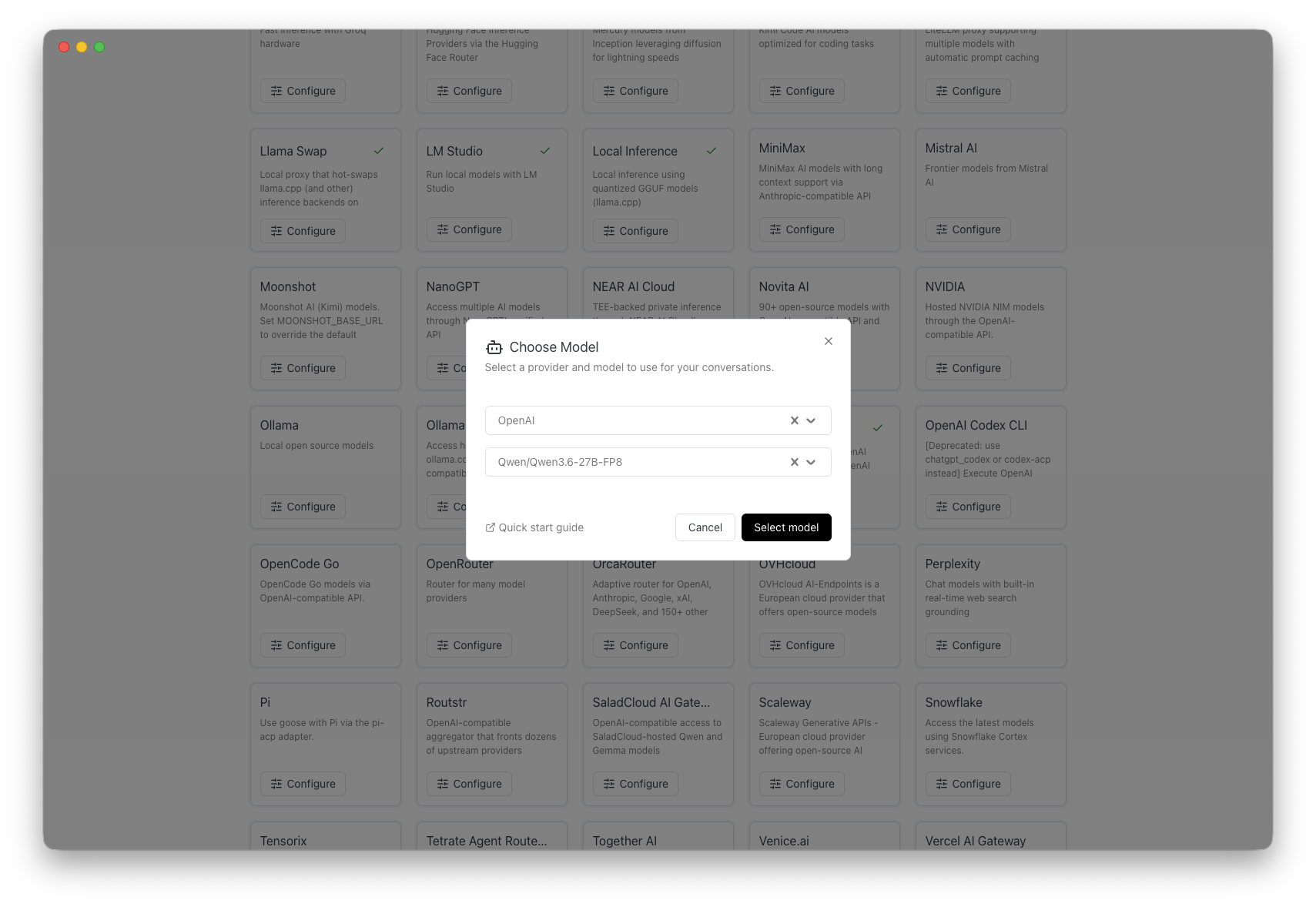
Next, we need to select the model. There is only Qwen/Qwen3.6-27B-FP8 in this dropdown.
Goose is now configured with our LLM provider. Let’s use it to build something.
Asking Goose to create a web application
Qwen/Qwen3.6-27B-FP8 is a quite small, quantized model that we deployed on an A40 GPU. We can’t expect this setup to provide the same result as a proprietary frontier model. But we’ll see it’s perfectly fine for simple tasks, and we can bet the next release will only get better.
We ask Goose to create a simple VueJS web application.
We see Goose displaying the model answers and executing the tool the model asked for.
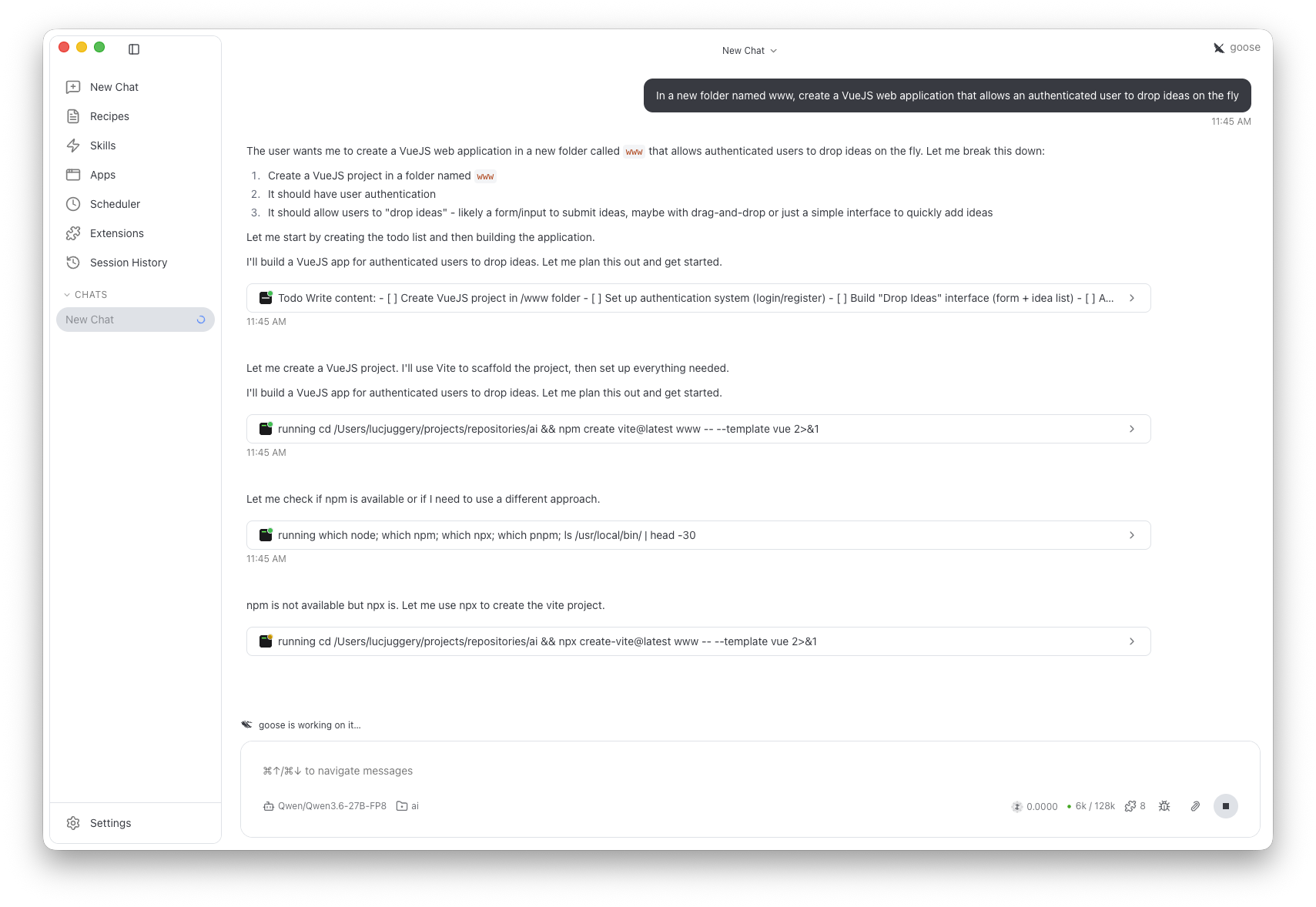
It took a couple of minutes to complete the task.
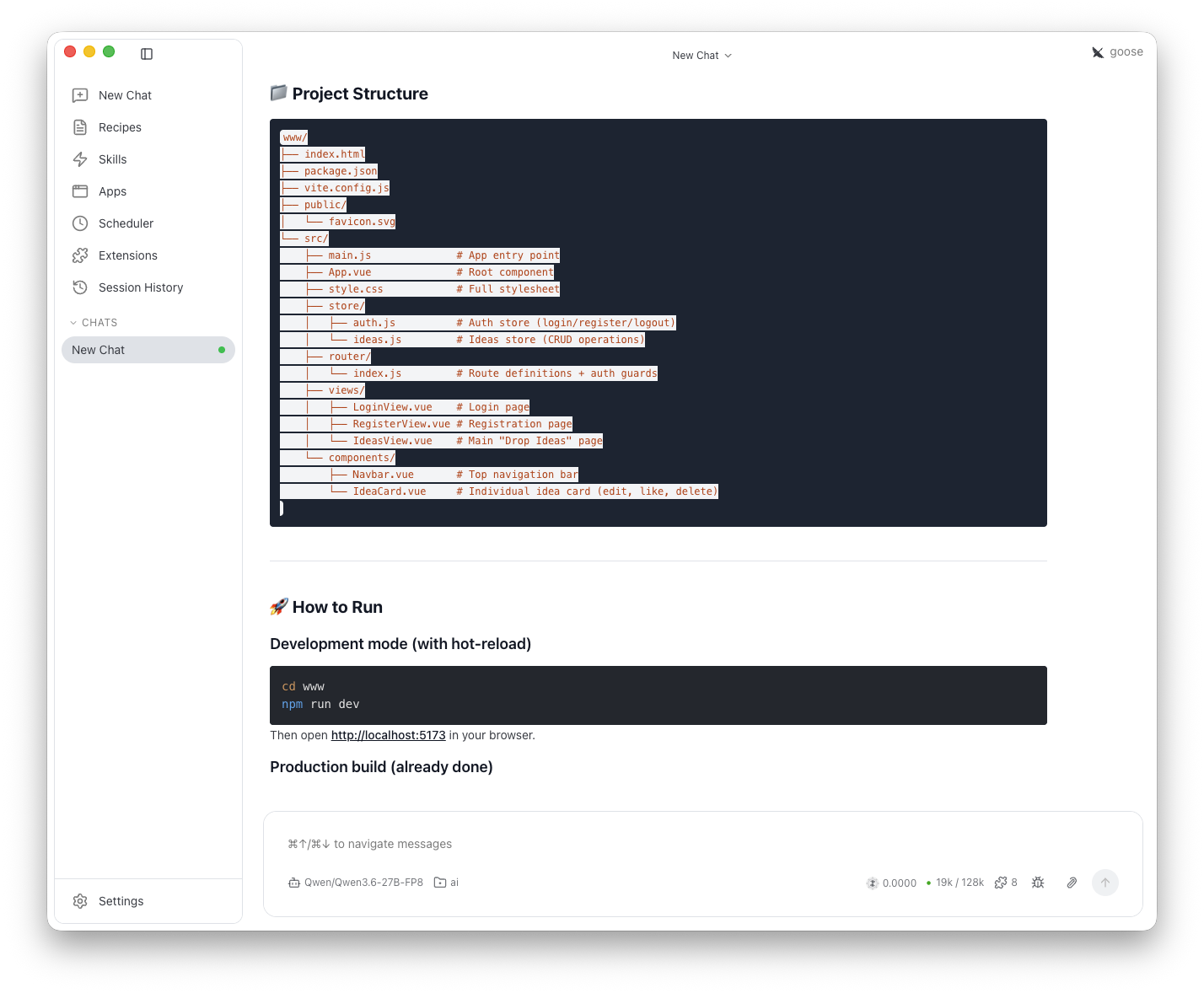
Then, we ran the application as indicated.
(base) (⎈|webhooks:N/A)~/projects/repositories/ai/www $ npm run dev

> idea-drop@0.1.0 dev
> vite

  VITE v6.4.3  ready in 205 ms

  ➜  Local:   http://localhost:5173/
  ➜  Network: use --host to expose
  ➜  press h + enter to show help
We open a browser to access the application.
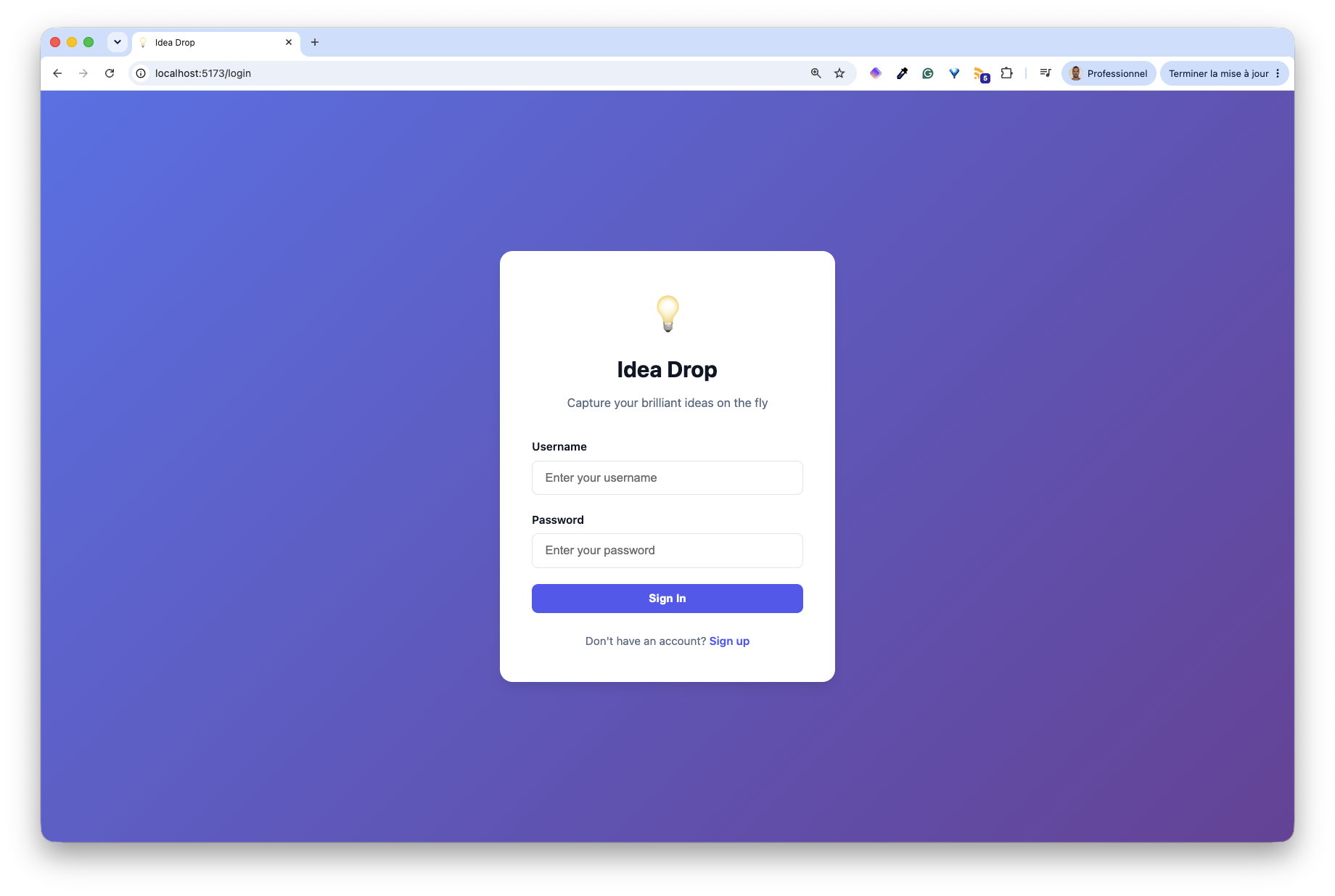
Next, we create an account, write an idea, and save it.
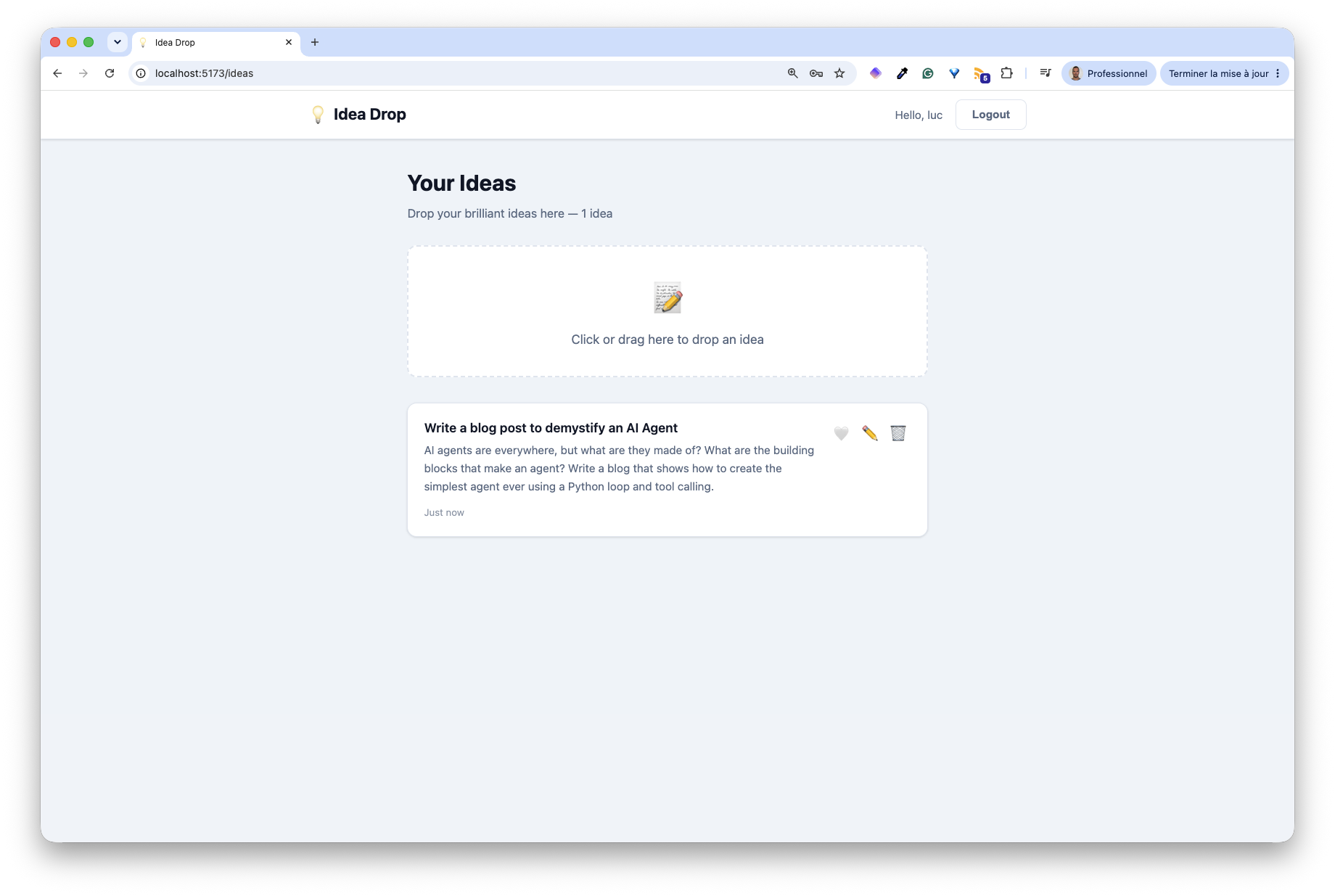
Using a couple of sentences, Goose was able to create a simple web application in a couple of minutes. The model used underneath, Qwen/Qwen3.6-27B-FP8, is quite small and quantized. We could achieve more complex tasks with a bigger model and GPU.
An overview of the internal process
When Goose was working on the web application creation task, there were a lot of messages sent back to us in the process, each message being a text and an instruction to call one or several tools.
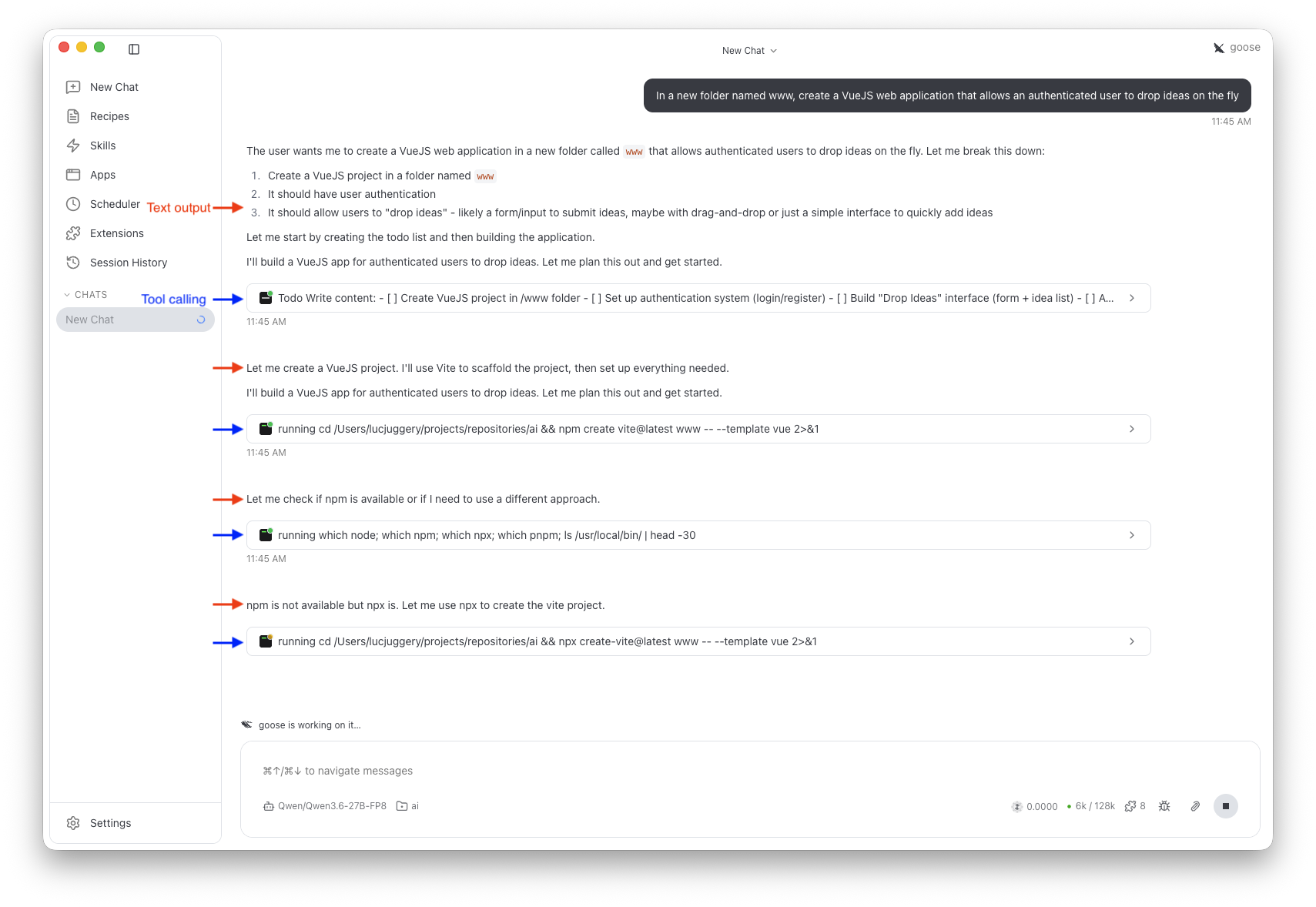
Under the hood, the process is similar to the following oversimplified python code.
# User asking the agent (Goose) to perform a task
messages = ["In a new folder named www, create a VueJS web application..."]
tools = ["..."] # List of tools already defined in Goose

# Goose launches a loop
while True:
    # Send the messages alongside the list of tools available to the LLM
    response = model(messages, tools)

    # Goose displays the message returned by the LLM
    display_text(response.text)

    # The task ends if the LLM does not ask Goose to execute tools
    if not response.tool_calls:
        break

    # Goose executes the tools the LLM has requested
    results = execute(response.tool_calls)

    # Goose appends the model's response and the tool results to the messages
    messages.append(response)
    messages.extend(results)
Goose sends a message to the LLM, which replies with some text and a list of tools to call. Goose displays the text, calls the tool, adds the result to the message, and sends it back to the model. This process happens in a loop until the model has no more tools to call.
Key takeaways
In this post, we used Goose as an AI coding agent, linking it with a small Qwen model running on Exoscale Dedicated Inference. This setup did a good job, allowing us to build an application without relying on a closed-source, frontier model hosted by the AI big players.
When you run a deployment on Exoscale Dedicated Inference, you pay for the underlying GPU. An important and useful feature is the possibility to scale the deployment down to zero, which releases the GPU resource (you don’t pay for it when the deployment doesn’t have any replicas), but you keep the same endpoint that you can reuse once the deployment is scaled up.
Goose is a great tool. It works perfectly fine as an AI coding agent. In a future post, we’ll explore more advanced goose usage, show how to provide skills, and extend it with MCP servers.

