---
title: "vCloud API with curl and python"
date: 2014-03-11
tags: ["vcloud","api","python"]
url: https://www.exoscale.com/blog/fiddling-vcloud-api/
---
# vCloud API with curl and python
**Quick summary of this article**
- vCloud provides a comprehensive RESTful API enabling programmatic management similar to CloudStack and VMware vCloud.
- Authentication returns a session token in headers and cookies to authenticate all subsequent API requests.
- Preconfigured query endpoints let you retrieve organization wide resource statistics and VM lists without issuing many individual API calls.
- HTTPie simplifies API interaction by managing sessions and producing colorized output; curl and GUI clients remain viable alternatives.
- Complex operations require programmatic SDK usage because vCloud's dense object model can overwhelm simple scripts.
We often talk about our [Open Cloud](https://www.exoscale.com/compute/) product here on this devops oriented blog. One thing worth noticing is that almost everything we state on our Apache CloudStack (tm) cloud can also be achieved with our Managed Cloud offering powered by VMware vCloud (tm).
## It has an API too!
Yes vCloud exposes an API. It would not be a cloud after all if it did not!
### Complex model
The API is very dense, and the object model it exposes can
frighten most sysadmins out there. Just have a look
at the VMware API documentation and various SDK (JAVA, PHP,...)
to find out.
### Hopefully there are some native REST queries
If your objective is to gather current information about your
cloud organization and perform simple actions regarding VMs then
vCloud exposes some [pre-made queries](http://pubs.vmware.com/vcd-51/index.jsp#doc/index.html)
* apiDefinition
* catalog
* catalogItem
* disk
* event
* fileDescriptor
* group
* media
* orgNetwork
* orgVdc
* orgVdcStorageProfile
* service
* task
* user
* vApp
* vAppNetwork
* vAppTemplate
* vm
* vmDiskRelation
## Authenticating first
Authentication to the vCloud API is rather simple. The authentication mechanism
is done by passing credentials and specific headers in your login request.
vCloud will then issue a session token which we will reuse as a header
parameter for all subsequent requests.
### Curl example
Let's start authenticating to Exoscale vCloud API using curl command line
client.
curl -i -k -H "Accept:application/*+xml;version=5.1" -u 'USER@ORG:PASSWORD' -X POST https://premium.exoscale.ch/api/sessions
We will send a HTTP POST request to the API endpoint passing the header parameter specifying the application
version and the HTTP Basic auth parameters. The result will produce:
HTTP/1.1 200 OK
Date: Tue, 11 Mar 2014 12:45:01 GMT
x-vcloud-authorization: hAXRtjaKLripYL/AIN5jroNMTPxE3bTceIKLb6iCnm4=
Set-Cookie: vcloud-token=hAXRtjaKLripYL/AIN5jroNMTPxE3bTceIKLb6iCnm4=; Secure; Path=/
Content-Type: application/vnd.vmware.vcloud.session+xml;version=5.1
Date: Tue, 11 Mar 2014 12:45:02 GMT
Content-Length: 1213
Notice in the answer headers the cookie and custom x-vcloud-authorization
parameter that were replied to my curl client:
x-vcloud-authorization: hAXRtjaKLripYL/AIN5jroNMTPxE3bTceIKLb6iCnm4=
Set-Cookie: vcloud-token=hAXRtjaKLripYL/AIN5jroNMTPxE3bTceIKLb6iCnm4=; Secure; Path=/
This token is then what vCloud is expecting for all requests in the session.
### Better looking with a python tool HTTPie
A small tool written in Python called [HTTPie](https://github.com/jkbrzt/httpie)
makes queries and using answers much simpler for us humans. Furthermore, it will
maintain for you the session parameters (the vcloud token) for the whole process.
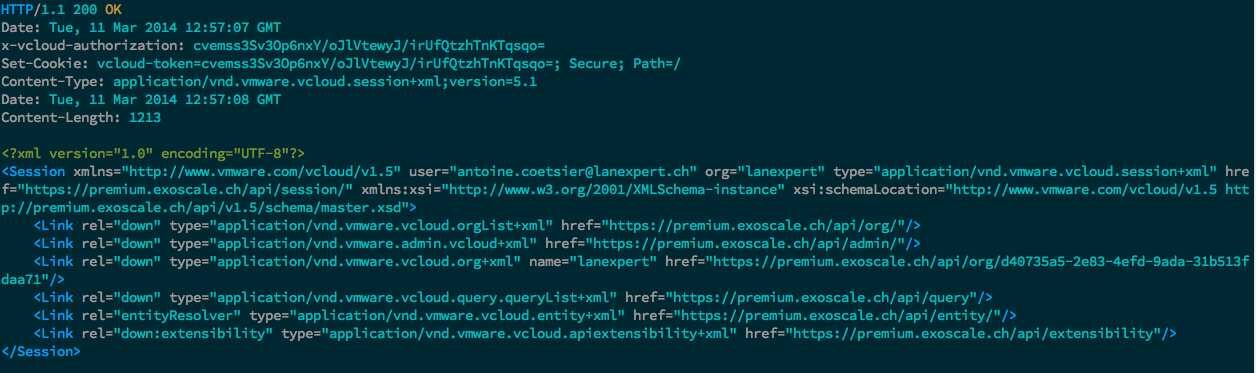
Here is how to authenticate and store the session with HTTPie:
http --session=vcloud -a USER@ORG POST https://premium.exoscale.ch/api/sessions 'Accept:application/*+xml;version=5.1' --pretty colors
Notice that I did not pass my password, HTTPie will prompt for it. The output,
colorized will be much simpler to read
### UI alternatives
If the command line is not an option, then a small tool like
[Rest Client](https://github.com/wiztools/rest-client) will give you a nice
UI and display for all your API exploration needs.
This particular graphical client runs on Java, and we have tested it
OK on MacOS X and Windows.
## Useful queries
One useful query is to gather information to monitor your virtual datacenter.
For the rest of this post, I will use HTTPie as a client, but any valid
http client like those presented will do.
### Drilling down
First list the Organization I am entitled to browse
http --session=vcloud GET https://premium.exoscale.ch/api/org --pretty colors
Gives me:
I can then drill down in the "lanexpert" org by the corresponding endpoint published:
http --session=vcloud GET https://premium.exoscale.ch/api/org/d40735a5-2e83-4efd-9ada-31b513fdaa71 --pretty colors
Which will list all attributes of my organization, such as the VDC (Virtual Datacenters)
available and their query point, catalogs, description....
### Organization stats
While the previous method gives information it requires many requests and loops
to gather the precious information. Listing manually all VMs will take ages.
This is where the pre-made user queries kick in:
http --session=vcloud GET https://premium.exoscale.ch/api/query?type=vm --pretty colors
will list all VMs with there most common information (cpus, ram, ...)
Getting the required stats about all resources in our organization is
achieved through the orgVdc query:
http --session=vcloud GET https://premium.exoscale.ch/api/query?type=orgVdc --pretty colors
With a pretty XML output of:
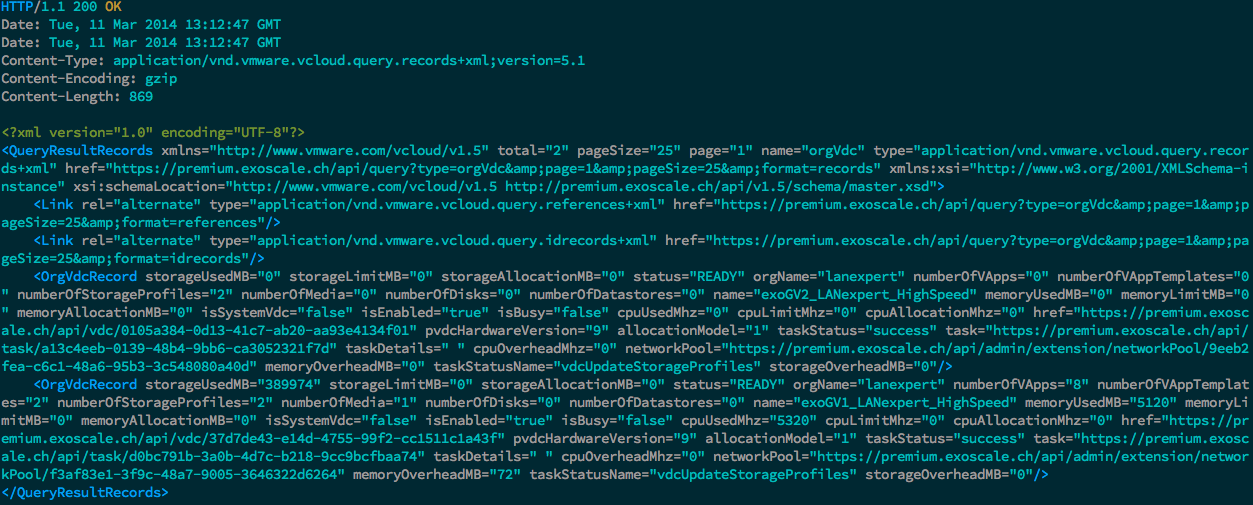
I now have in a single line, stats about the number of vDC, the used storage,
RAM, ...
## Conclusion
Using the vCloud API is technically rather simple, the trick is not to get
lost in its numerous objects and types. The pre-made queries when fitted
to your use case provide great shortcuts. More complex usages will
require a programmatic approach with the language of your choice.